You have the CSS selector. The button is right there on your site. You're in Google Tag Manager. This should be quick.
Two hours later, nothing works.
Here's what happened.
The Configuration Problem No One Talks About
You've got your selector. Great. Now you need to configure the trigger.
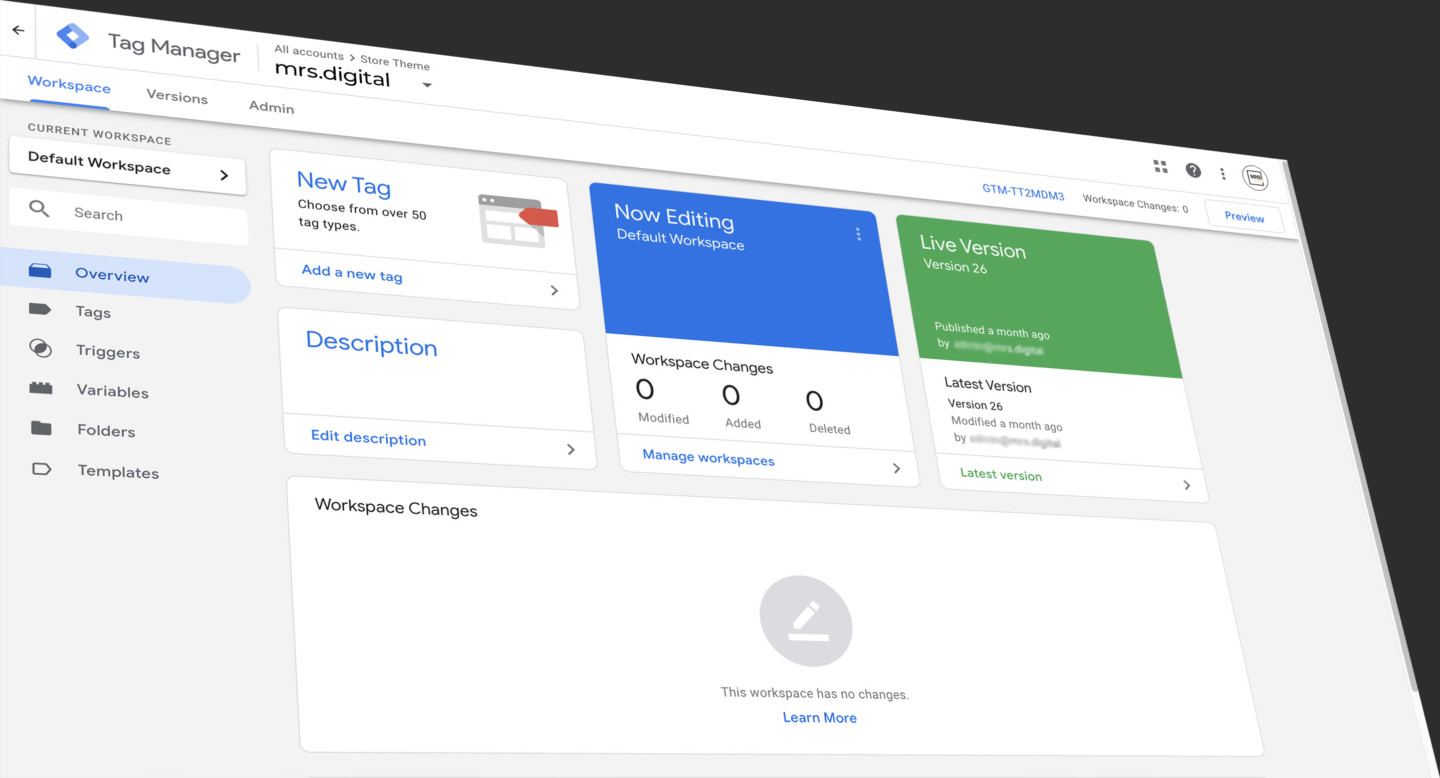
Trigger type: All Elements? Just Links? Form Submission? Scroll Depth? Custom Event? (There are more.)
Variable: Click Element? Click Classes? Click ID? Click Text? Click URL?
Operator: Equals? Contains? Starts with? Matches CSS Selector? Matches RegEx? Does Not Contain?
That's 3 trigger types × 4 variables × 6 operators = 72 possible configurations.
And you don't know which one is correct.
The Debug Loop
So you start testing.
Exit preview mode. Re-enter preview. Refresh your site. Click the button. Check the console. Nothing fired.
Go back to GTM. Change 'equals' to 'contains'.
Exit preview mode. Re-enter preview. Refresh. Click. Check. Still nothing.
Try Click Classes instead of Click ID.
Exit preview mode. Re-enter preview. Refresh. Click. Check. Still nothing.
Try Click Element instead. Change the operator to 'matches CSS selector'.
Exit preview. Re-enter. Refresh. Click. Check.
After 2 hours, nothing works.
Then you realize: Your CSS selector was wrong from the start.
All those configuration tests? Pointless. You were debugging trigger logic when the problem was the selector.
Why This Happens
When a trigger doesn't fire, one of two things is wrong:
- The selector doesn't match the element
- The trigger configuration is incorrect
GTM forces you to debug both at the same time.
So you change trigger logic when the selector was wrong from the start. Every test is wasted effort because you're solving the wrong problem.
Preview mode tells you something failed, not what failed. There's no signal that says "your selector doesn't match anything" or "your selector is fine, try a different variable."
You won't know which combination works until you test it. And testing means the debug loop.
The Real Cost
A button click should take 5 minutes. Instead, it takes 2-4 hours.
Multiply that across landing pages, campaigns, A/B tests.
You're spending half your week in GTM configuration instead of running campaigns.
Why Tutorials Don't Solve This
Tutorials show you the answer for their specific example. "Use Click Element with matches CSS selector."
Great. It works.
But next time you need to track something, you're guessing again. Because the tutorial didn't teach you when to use Click ID vs Click Element. Or why 'contains' might be better than 'equals' for your situation.
The process doesn't stick because you never learned the decision tree.
What Actually Fixes This
This is what we call the trigger configuration maze. You can't learn your way out of it because the problem isn't knowledge, the requirement to manually translate between what you see (a button) and how GTM identifies it (selector + trigger type + variable + operator).
Tag Companion removes that translation layer.
You click the button on your site. Our SDK captures the element. We generate the complete GTM trigger configuration: type, variable, operator, everything. You download the template and import it into GTM.
No guessing. No debug loop. Works first try.
Because you shouldn't need to know 72 configuration combinations to track a button click.
Ready to skip the maze?
No credit card required. Point-and-click interface for GTM. Generate templates in minutes.